Your Booking Page Should Look Like Your Brand. Now It Does.
Buxo now generates a fully branded booking page from your website URL or logo in seconds. Colors, fonts, dark or light mode, your logo front and center. No design tools needed.
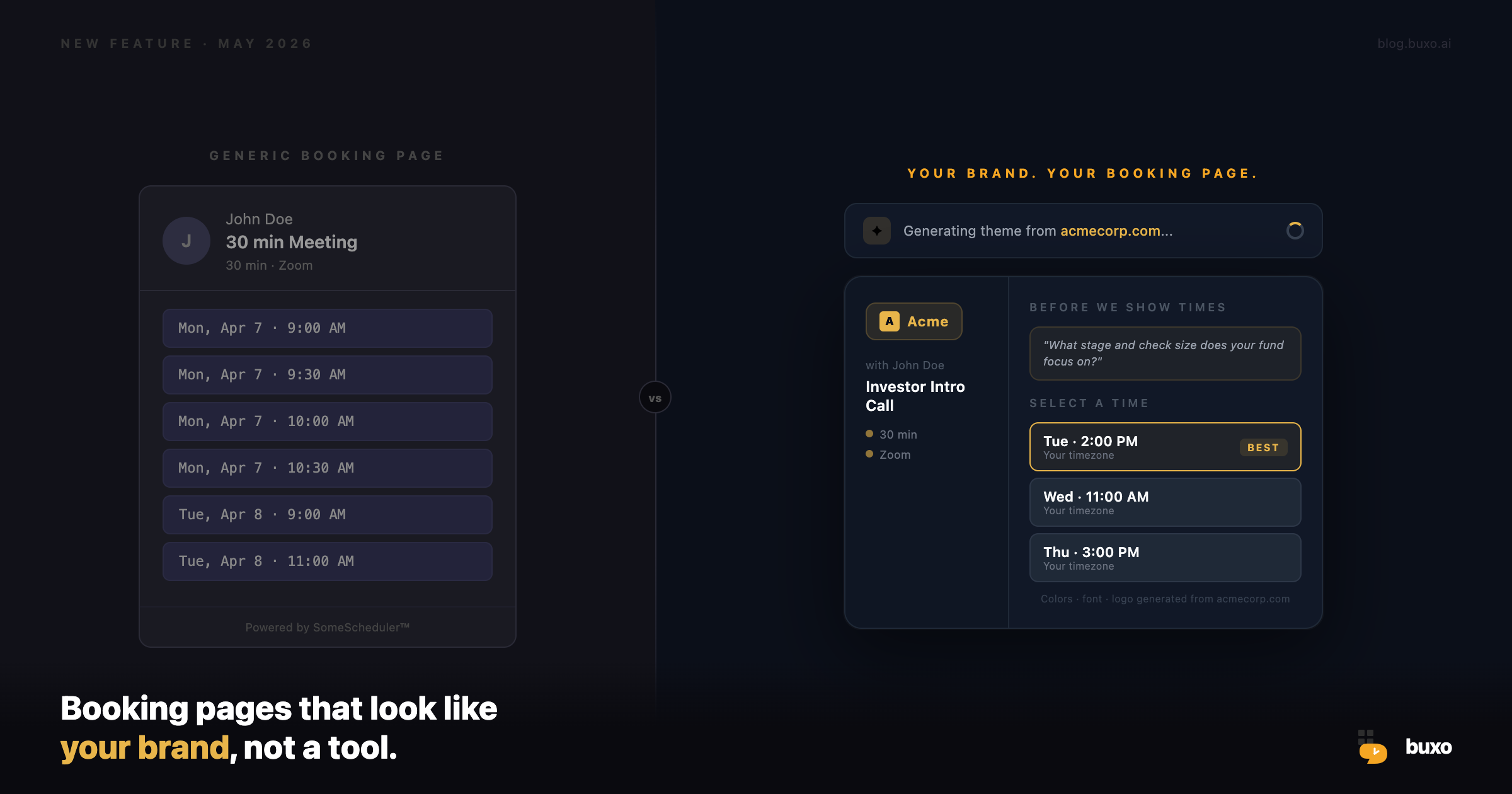
When someone clicks your scheduling link, the first thing they see is your booking page. If it looks generic, they clock it immediately. It feels like a Calendly page, because it is one. Your name is on it, but it does not feel like you.
Buxo now fixes that. Paste your website URL. Upload your logo. Or just describe your brand in a sentence. The AI generates a complete, branded booking page theme in about 10 seconds.
What “branded booking page” actually means
A branded booking page is not just dropping your logo in. It means your invitee lands on a page that:
- Uses your exact brand colors, not a default amber or generic blue
- Matches the mood of your site. If your site is dark and premium, the booking page is too
- Shows your logo where it belongs, sidebar or header, with the right background so it does not disappear
- Uses a font that matches how your brand reads
- Has no visual cues that scream “this is a third-party scheduling tool”
Every one of these things is handled automatically when you give Buxo your URL.
How it works: paste a URL, get a theme
Go to Templates in your Buxo dashboard and click New Template. You have three ways to start:
Option 1: Your website URL
Type in your URL, e.g. acmecorp.com. Buxo fetches the page, extracts your color palette, detects your fonts, reads your declared theme color, and determines whether your brand lives in a dark or light world. The AI then builds a theme that mirrors all of that and applies it to your booking page.
Option 2: Upload your logo
No website? Upload your logo file. Buxo reads the logo’s dominant colors and luminance to decide how to render it without creating a visual collision between your logo and the booking page background.
Option 3: Describe it in plain English
Type “dark background, electric blue accent, minimal” or “warm, earthy, feels like a boutique hotel” and the AI designs a theme around that description.
All three options can be combined. URL plus a logo plus a short note about your brand direction gives the best result.
Refine it by talking to it
Once your theme is generated, you do not open a color picker. You type.
“Make the background darker.”
“Switch the font to Montserrat.”
“The card feels too flat, add a glass effect.”
“Make the border radius more rounded.”
Each message applies a precise change to your theme. You can undo any change. The full conversation is saved so you can trace every decision.
This is not a sliders-and-dropdowns interface. It is a design conversation that stays in your dashboard.
Eight built-in presets to start from
If you want something ready in 10 seconds with no input at all, pick a preset:
- Minimal Light: Clean, bright, Buxo’s own default palette
- Midnight: Dark, elegant, premium. Gold accent on near-black.
- Ocean: Calm teal blues. Feels structured and clear.
- Sunset: Warm amber and coral gradient. Inviting and confident.
- Forest: Grounded greens, earth tones, Merriweather serif.
- Rose: Soft pink, Playfair Display, glass card. For coaches and creators.
- Corporate: Professional navy and gray. Built for B2B pitches and enterprise sales.
- Monochrome: Pure black and white. Bold, editorial, timeless.
Pick one, attach your logo, and you are done. Or use one as a starting point and refine from there.
What your invitee actually sees
Your invitee clicks your booking link and lands on a page that looks exactly like your brand. Your logo sits in the sidebar. Your colors are everywhere. Your font loads cleanly. The booking flow itself, choosing a time, answering your intent question, confirming, is all the same. What changes is everything visual.
For consultants, coaches, agency owners, and founders doing investor outreach: the page now represents you as accurately as your website does. The person booking a call with you gets the same brand impression before they ever meet you.
You can also remove the “Powered by Buxo” badge entirely. The booking experience is yours.
Assign a template to any event type
Templates work per event type. Your investor pitch can have the Midnight dark theme. Your onboarding calls for customers can use your full brand colors. Your internal 1:1s can stay on the simple default.
One template can be assigned to multiple event types. Change the template once, and every event type using it updates automatically.
Why this matters more than you think
Scheduling links travel. They go in email signatures. They land in LinkedIn messages, cold outreach, investor updates, client proposals. Every time someone clicks that link, they form a first impression.
A generic booking page undercuts the work you put into your brand everywhere else. A branded one reinforces it. That is not a cosmetic detail. It is part of the trust signal that gets someone to actually book.
Buxo is the only scheduling tool where the booking page is generated from your brand, not configured field by field by hand.
How to set it up
- Go to Dashboard > Templates
- Click New Template
- Paste your website URL or upload your logo
- Review the generated theme, refine if needed
- Go to any Event Type, open its settings, and assign the template
The whole thing takes under two minutes. Your next scheduling link will look like it was designed for you. Because it was.
Related reading: Skills: One-Click Scheduling Templates · Workflows: Automate Everything Before and After the Meeting · The Best Calendly Alternative for Founders in 2026