Workflows: Automate Everything Before and After the Meeting
Buxo Workflows handle reminders, follow-ups, no-show recovery, and more. Set a trigger, write the email, and never think about it again. Here is how automated scheduling workflows replace your manual meeting admin.
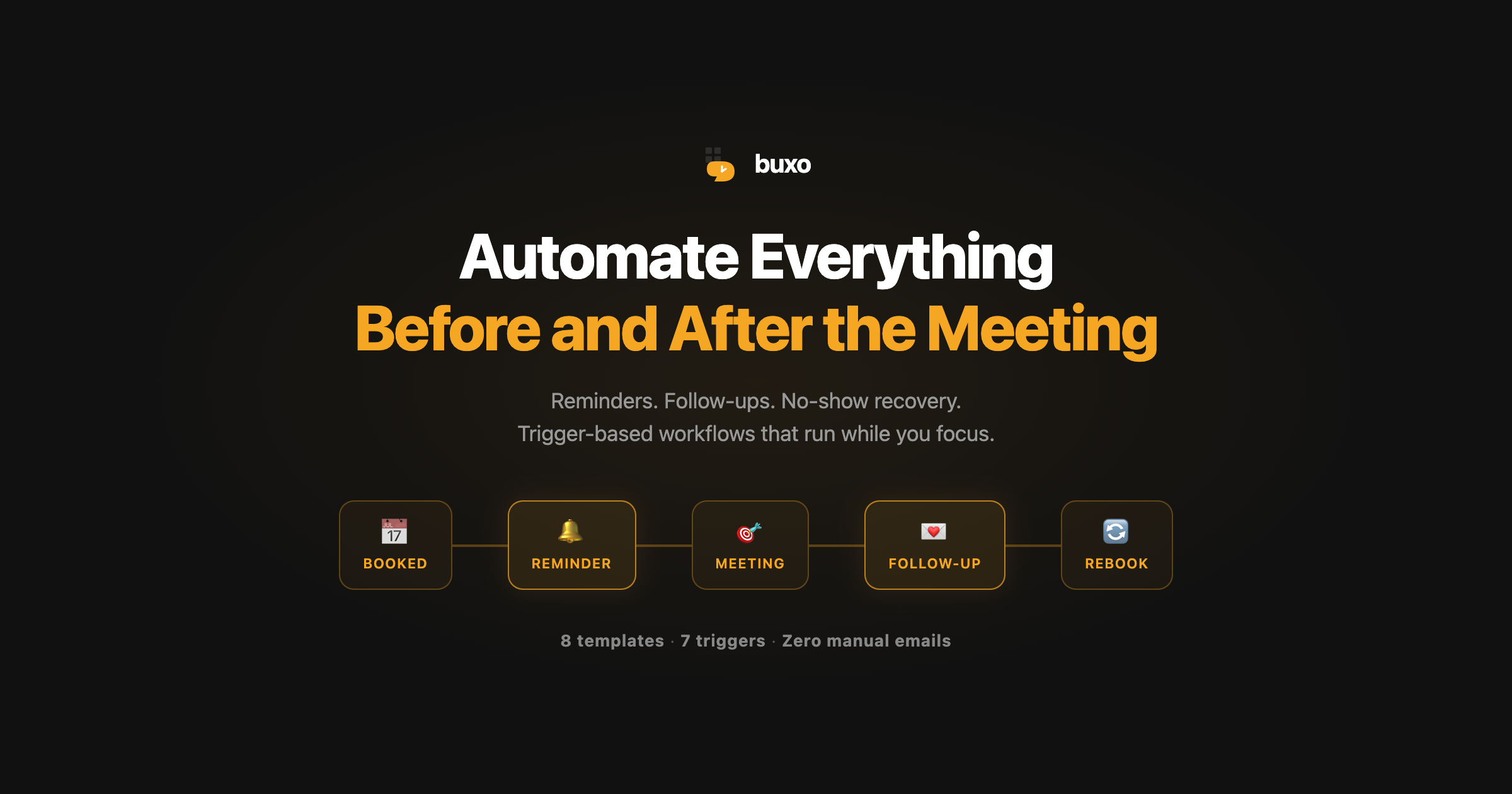
Your scheduling tool books the meeting. Then what?
You manually send a reminder the day before. You draft a thank-you after the call. You chase no-shows with a “Hey, did something come up?” email. You forward a Zoom link because someone lost it.
That’s not scheduling. That’s admin. And it’s exactly the kind of work that should happen automatically.
Today we’re launching Workflows: trigger-based automations that handle everything before and after your meetings. Reminders, follow-ups, no-show recovery, resource sharing. All of it, running in the background while you focus on the actual conversation.
What is a Workflow?
A Workflow is a simple automation: when something happens, send an email.
Every Workflow has three parts:
- A trigger (the event that kicks it off)
- Timing (immediately, or with a delay)
- An action (the email that gets sent)
Example: “24 hours before an investor pitch, send the invitee a reminder with the Zoom link and agenda.”
That’s one Workflow. It runs every time someone books your Investor Pitch event type. You set it up once, and it works forever.
7 triggers that cover the full meeting lifecycle
Buxo Workflows can fire at any point in a meeting’s lifecycle:
- When a new event is booked: Send a welcome email, share resources, or confirm details.
- Before the event starts: Send reminders (24 hours, 1 hour, 10 minutes, whatever you want).
- When the event starts: Notify a team member or log the event.
- When the event ends: Send a thank-you, request feedback, or offer a follow-up booking link.
- When an event is rescheduled: Confirm the new time and keep everyone in sync.
- When an event is canceled: Acknowledge the cancellation and offer to rebook.
- When an invitee is marked as a no-show: Send a gentle follow-up with a link to book again.
Most AI scheduling tools stop at the booking confirmation. Buxo covers the full lifecycle, from the moment someone clicks “Book” to the follow-up after the call ends.
8 templates to get started in seconds
You don’t have to build Workflows from scratch. Buxo ships with 8 ready-to-use templates:
Reminders
- Reminder to host (24h before): So you never walk into a call cold.
- Reminder to invitee (24h before): Reduces no-shows by up to 40%.
- Reminder to someone else (24h before): Loop in an assistant, a co-host, or a note-taker.
Follow-ups
- Thank-you email (after the event ends): A professional touch that takes zero effort.
- Request follow-up meeting (after the event ends): Include a booking link for the next conversation.
- Feedback survey (after the event ends): Send your own survey link to gather insights.
Other automations
- Additional resources on booking: Share prep materials, agendas, or documents the moment someone books.
- No-show recovery: When you mark someone as a no-show, they automatically get a friendly email with a link to rebook.
Each template comes with a pre-written subject line and email body. Pick one, customize it, and activate.
Personalized emails with template variables
Every Workflow email can use dynamic variables that get replaced with real data when the email is sent:
- Invitee name and email: “Hi {{invitee_full_name}}” becomes “Hi Sarah Chen”
- Event details: Name, date, time, duration, location
- Meeting link: The Zoom, Google Meet, or custom link for the call
- Self-serve links: Reschedule and cancel links so invitees can manage their own booking
- Questions and answers: The intent capture responses from booking
Your emails feel personal. They are personal. They just happen to be automated.
How founders are using Workflows
The fundraise stack
A founder raising a seed round sets up three Workflows on their Investor Pitch event type:
- On booking: Send the invitee a one-pager and deck link
- 24h before: Remind the invitee with the Zoom link and a note: “Looking forward to chatting”
- After the call: Send a thank-you with a link to book a follow-up DD session
Three Workflows. Zero manual emails. Every investor gets the same professional experience.
The hiring pipeline
A hiring manager running technical interviews:
- On booking: Send the candidate a prep guide and coding environment link
- 1 hour before: Remind both the candidate and the interviewer
- After the interview: Send the candidate a thank-you while the scoring notes are fresh
The coaching practice
A coach with 20 clients a week:
- 24h before: Remind the client and share a pre-session reflection prompt
- After the session: Send session notes template and a link to book the next session
- No-show: Automatically send a gentle “missed you” email with a rebook link
Workflows are per event type
This is where Workflows become powerful. Each event type can have its own set of automations.
Your Investor Pitch gets a deck link on booking. Your Coffee Chat gets nothing. Your Technical Interview gets a prep guide 48 hours before. Your 1:1 with Direct Reports gets a “what should we cover?” prompt.
Different meetings, different automations. One scheduling link handles it all.
System defaults: one toggle, done
Not everyone wants to build custom Workflows. That’s fine.
Every event type in Buxo has two toggles in the notification settings:
- Email reminders: Sends the invitee a reminder 24 hours before. One toggle. On.
- Email follow-up: Sends a thank-you after the event ends. One toggle. On.
These system Workflows use the built-in templates. For most people, this is all they need. For power users, the full Workflow builder is there when they want it.
What makes Buxo Workflows different from Calendly workflows?
Calendly has Workflows too. Here’s what’s different:
Buxo Workflows work with Skills. When you pick a Skill (like Investor Pitch or Technical Interview), the Skill can recommend Workflows that make sense for that meeting type. Fundraising Skills suggest deck-sharing on booking and follow-up after the call. Hiring Skills suggest prep guides and interviewer reminders. The scheduling intelligence extends to the automations.
No-show recovery is built in. In Buxo, marking an invitee as a no-show can automatically trigger a recovery email with a link to rebook. No manual drafting. No “should I follow up?” anxiety.
Self-serve rescheduling links in every email. Every Workflow email can include reschedule and cancel links. Your invitees manage their own bookings without emailing you. This is the kind of small detail that adds up to hours saved per week.
Getting started
Workflows are available now for all Buxo users.
- Go to any event type in your dashboard
- Scroll to “Notifications and Workflows”
- Toggle on reminders and follow-ups, or click “Add workflow” for full customization
- Or visit the Workflows page in your dashboard to build from templates
It takes 30 seconds to set up a reminder. It takes 2 minutes to build a full automation stack for your most important meeting type.
Your meetings deserve more than a calendar invite and a prayer.
This is the third post on the Buxo blog. We cover product updates, scheduling insights, and founder productivity. Follow along via RSS.