AI Scheduling Is Now Optional: You Decide, Per Meeting
Not every meeting needs AI picking your time slots. Buxo now lets you enable or disable AI scheduling per event type. One checkbox. Full control over how your calendar works.
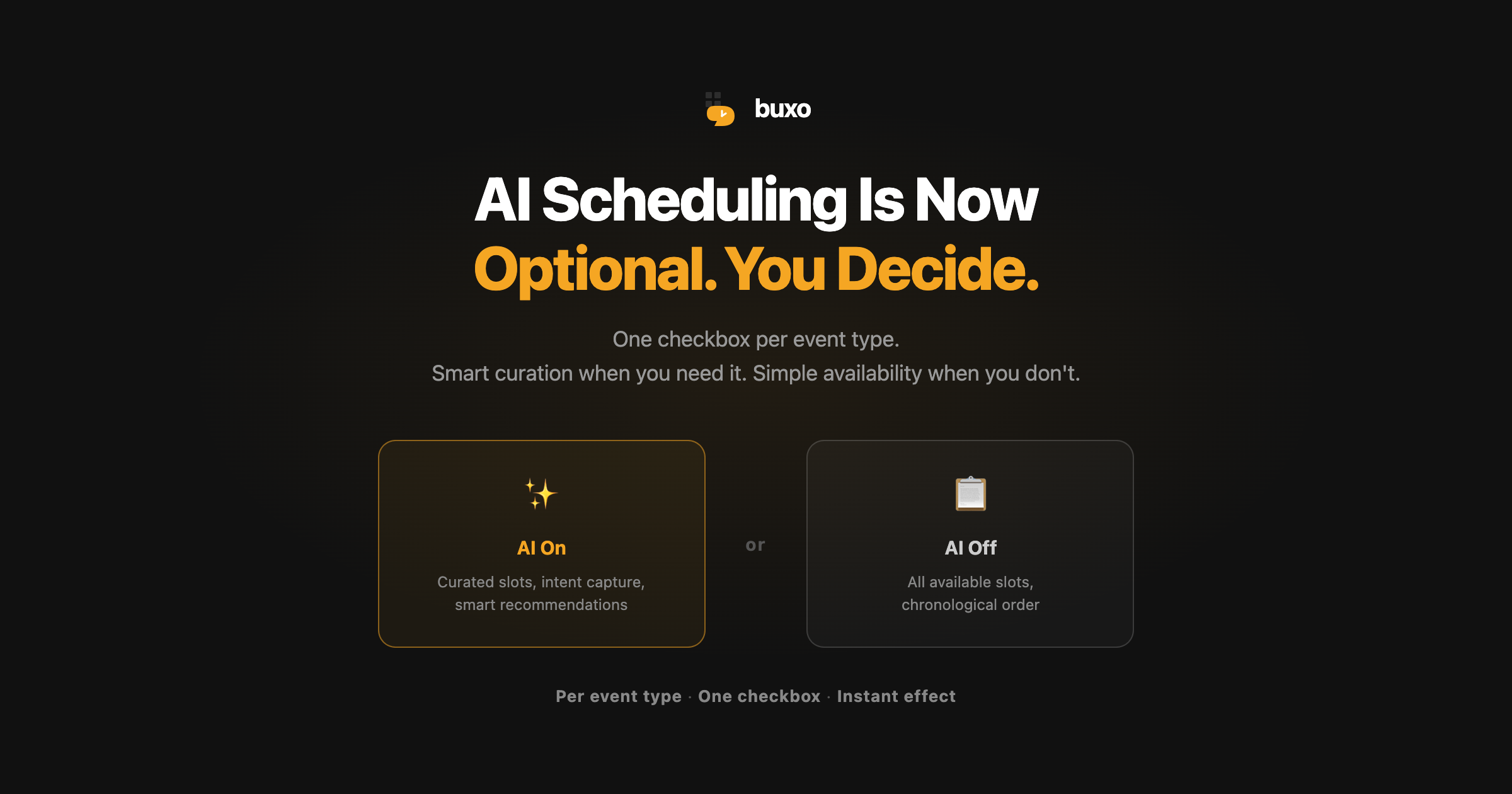
Not every meeting is a high-stakes investor pitch.
Some are team standups. Some are quick coffee chats. Some are open office hours where you genuinely want people to pick any time that works.
For those meetings, you don’t need AI reading your instructions, analyzing invitee context, and curating the perfect three time slots. You just need a simple calendar with open availability.
So we added one checkbox: Enable AI scheduling.
It’s per event type. Turn it on for the meetings that matter. Turn it off for the ones that don’t. Your calendar, your rules.
What changes when you flip the switch?
AI scheduling on (the default)
This is the Buxo you know. When AI scheduling is enabled:
- Buxo reads your Agent Instructions (“prefer mornings,” “no back-to-back,” “cluster calls on Tuesdays”) and uses them to pick the best slots
- If you’ve set up Intent Capture, invitees answer your question (“What’s this meeting about?”) before seeing any times, and Buxo factors their answer into slot selection
- Your invitees see a curated set of time slots, ranked by how well they match your preferences
- Recommended slots are highlighted so invitees can book faster
This is ideal for meetings where you have opinions about your time: investor calls, client meetings, interviews, coaching sessions. Anything where “when” matters as much as “whether.”
AI scheduling off
When you uncheck the box, Buxo strips away the intelligence and gives you a simple, transparent booking page:
- Invitees see all your available time slots in chronological order
- No intent capture step. No “What’s this meeting about?” gate
- No recommended slot highlights. Every slot is equal
- No AI processing. Just your calendar availability, laid out clearly
The booking experience is still fast, still timezone-aware, still respects your working hours and daily limits. It just skips the AI layer entirely.

When to turn AI off
Here’s the mental model: if you’d be fine with someone picking any open slot, turn AI off.
Some common examples:
- Internal 1:1s: Your direct reports don’t need curated slots. Let them pick what works for their day.
- Coffee chats: These are casual. Any open time is fine.
- Office hours: The whole point is broad availability. Show everything.
- Team meetings: When scheduling across a team, simplicity beats curation.
- Simple consultations: When you just need a time on the calendar, not the best time.
Turning AI off also means faster page loads for your invitees. No AI processing means the booking page renders your availability instantly.
When to keep AI on
Keep AI enabled for the meetings where your scheduling preferences actually matter:
- Investor pitches: “Cluster on the same day, keep buffers for notes, only 10am to 4pm”
- Client calls: “Prefer mornings when I’m sharpest, no back-to-back”
- Technical interviews: “Max 2 per day, protect mornings for deep work”
- Coaching sessions: “Spread across the day, 15-min buffer between sessions”
- Any high-stakes meeting: When you’ve written Agent Instructions for a reason, AI scheduling is what makes them work
If you’ve invested time writing instructions like “no meetings on Fridays” or “batch calls in the afternoon,” those instructions only take effect when AI scheduling is on. Turning it off means your instructions are ignored and invitees see raw availability.
Mix and match across event types
This is the key insight: different meetings deserve different experiences.
A founder might have:
- Investor Pitch (AI on): curated slots, intent capture, morning preference, 3 slots max
- Team Sync (AI off): all availability, no gate, pick any time
- Coffee Chat (AI off): simple and open
- Board Prep Call (AI on): specific day windows, buffer time, limited slots
One Buxo account. Four event types. Two with AI, two without. Each booking page behaves exactly how you want it to for that specific meeting.
How to set it up
- Open any event type in your dashboard
- Look for the “Enable AI scheduling” checkbox
- Check it for smart, curated scheduling. Uncheck it for simple chronological availability.
- That’s it. The change takes effect immediately.
New event types have AI scheduling enabled by default. If you’ve been using Buxo, your existing event types already have it on, so nothing changes unless you decide to turn it off.
Why we built this
Buxo started as an AI scheduling tool. Every meeting got the full treatment: intent capture, instruction parsing, curated slots.
But we heard from users that not every meeting needs that. A team standup isn’t a Series A pitch. Forcing AI on a simple internal sync felt like overkill.
The answer wasn’t to remove AI. It was to make it optional. The best AI scheduling tool is one that knows when to step back.
One checkbox. Per event type. Full control.
Follow the Buxo blog via RSS for product updates, scheduling insights, and founder productivity tips.